
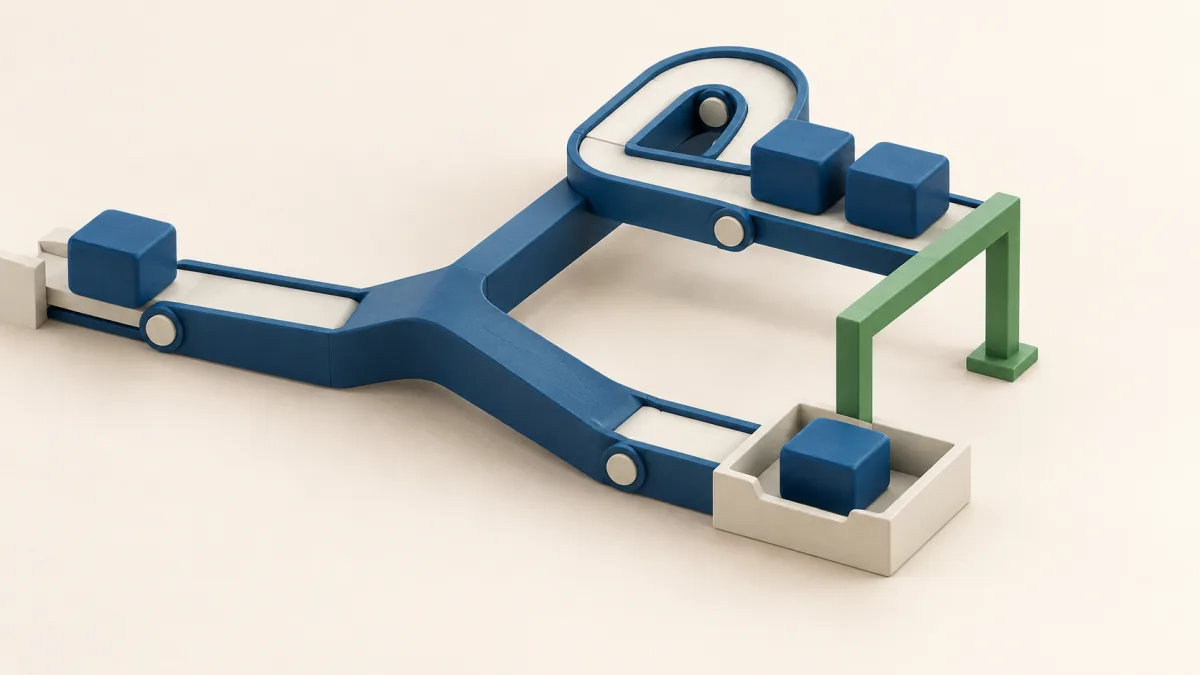
GA4 and your CRM can show different lead counts because they use different counting rules, events fire repeatedly, or the analytics signal is lost. Start with one form, one event and the same period. Compare accepted enquiries with the corresponding event, and assess qualified leads and sales separately.
When a report shows many conversions but your team receives few enquiries, poor advertising seems an obvious explanation. Yet the event may fire on a button click before the server responds. The reverse is also possible: the lead is saved but the browser never sends its signal to GA4. Until you know the cause, cost per lead can be misleading.
Define the leads you are comparing
A “lead” might mean a form submission, a new record, a unique contact or an enquiry accepted by the sales team. Write down the rule: for example, one successfully accepted consultation-form submission creates one record and one generate_lead event. Exclude phone enquiries, messages and manually entered records from this reconciliation for now.
Google recommends generate_lead for a form submission or request for information. You must configure it; installing analytics does not send it automatically. An automatic form_submit event, where form-interaction measurement is enabled, also needs testing against your implementation and does not prove that an enquiry was saved.
Submissions, contacts and qualified leads are separate measures
Suppose one visitor makes two independent enquiries during one visit. That is two submissions, but the CRM may merge them into one contact. If one enquiry is later disqualified, the qualified-lead count falls again. Technical reconciliation needs the original accepted submissions, including those later rejected, with tests and spam identified separately.
In GA4, distinguish event count, users and key events. A key event can count every occurrence or once per session. The latter combines repeated occurrences within a session, including independent enquiries. It does not fix duplicate tracking code, and changing the method affects future data.
Find the point at which an enquiry is accepted
A form journey has several steps: the visitor clicks, fields pass validation, the request reaches the server, a record is saved, the interface receives confirmation and calls the analytics event. An accepted-lead signal should rely on confirmed storage. Form opening and submission attempts can be measured separately under different names.
Anilau service forms call generate_lead after a successful handler response. For an accepted enquiry, the server first saves a record in its own database, then attempts notifications. A failed Telegram notification does not cancel that saved lead. The number of chat messages can therefore differ from the number of records.
Verify storage and event receipt separately
A call in the code establishes the intention to send an event. Testing also needs evidence of a stored record, a successful form response, an outgoing analytics request and an event received by the correct GA4 property. If the site database feeds a separate CRM, add another step: record creation there and handling of integration failures.
If the connection breaks after storage, the browser can display an error even though the record exists. Retrying may create another record. That requires server-side handling of repeated requests and a way to check whether storage succeeded; changing a tag alone cannot solve it.
Trace duplicates and missing events to their origin
When there are more events than accepted enquiries
Find every sender of this specific event and its destination property: page code, Google Tag Manager, a website plugin or a server integration. Two mechanisms attached to the same successful submission can send two events. The presence of both Google tag and GTM alone does not establish duplication; observe the repeated signal.
Other causes include multiple form handlers, firing both on submission and on the thank-you page, reopening that page, or repeated clicks before the button is disabled. Do not add two different events describing the same lead to an accepted-enquiry total. A separate technical signal and generate_lead, for example, may describe one result.
When events are missing or fewer
Check the GA4 property and stream, tag execution on the particular page, trigger conditions, JavaScript errors and the server response. Analytics may work on the home page while the form uses a different template. A success message may appear without executing the branch that sends the event.
Some differences reflect observation limits: a visitor may decline analytics consent, an extension may block the request, or the connection may fail. The enquiry can still be saved independently. Test consent state as a separate condition. Where GA4 requirements are met, modeling can supplement data, but it does not create a verifiable record for each missed enquiry and is not supported in every reporting surface.
Align periods, filters and sources
Select a complete period and check the property timezone against CRM creation timestamps. An event near midnight can fall on different calendar dates. Avoid comparing today's operational table with a report still being processed: GA4 data availability depends on the report and processing.
Limit both sides to the same form and website. Record how tests, spam, internal traffic, deleted records and merged contacts are handled. Check whether the CRM selects enquiries by creation date or deals by status-change date. These selections answer different questions.
Separate counting from advertising attribution
Reconcile the overall form signal before splitting it by channel. Then examine sources. The CRM may store a landing-page campaign label while the selected GA4 report allocates key-event credit according to attribution rules. First-contact, session and event source dimensions are also different measures.
GA4 reports and explorations can differ because of processing, modeling and data limitations. Read data-quality messages and keep the report name, metric and filters beside the result. Once measurement is verified, move to the separate question of whether Google Ads pays off given lead quality and sales.
Test one form using this table
This is an acceptance template, rather than findings from a particular account. Expected events assume a test with analytics consent granted, unblocked requests and the rule “one event per accepted submission”. Start in a test environment. If a production check is necessary, identify test enquiries beforehand and agree their exclusion from business reporting.
| Action | Stored records | generate_lead events | What to verify |
|---|---|---|---|
| One successful submission | One new record | One event | Server response, record and received event describe the same submission |
| Field error or server rejection before storage | Zero | Zero | The success signal is not attached to a click or submission attempt |
| A double click on one submission | One under the repeat-protection rule | One under the same rule | Button disabling and server handling of repeated requests |
| Reopening the thank-you page | No new records | No new events | Viewing the page does not generate another lead |
| Two independent successful enquiries in one session | Two submissions; possibly one contact | Two events | Check the key-event counting method separately |
| Analytics consent denied or tracking blocked | One if submission succeeds | Do not require one observed event | Tag behavior follows consent settings; lead storage still works |
| Response lost after storage | Check the record before retrying | Check whether an event was sent | A UI error is not proof that the record is absent |
Use Tag Assistant, GTM preview and GA4 DebugView as appropriate to observe the event. Debug mode must be enabled for the test device. A fired trigger does not prove receipt by Analytics. After the technical test, also check a normal report for a processed period.
Keep the time, form, consent conditions and outcome of each step inside the project. Customer contact information belongs in the CRM. Do not send names, phone numbers, email addresses or enquiry text in ordinary event parameters, page titles or analytics URLs.
Fix the verified cause and repeat the test
If several mechanisms send the event, appoint one sender for a successful enquiry. If it fires early, move it to confirmation of storage. If requests repeat, fix the form and server handling. After each change, repeat the successful, failed and repeated-action scenarios. Record the change date to separate before and after periods.
The free Google Analytics Advisor for Codex and Claude Code helps inspect accessible GA4 and GTM settings and project code, find missing or repeated tags, and prepare supported changes. Changes need separate approval. The plugin does not deploy websites; CRM records are checked separately.
A useful starting request is: “Check measurement for the consultation form: which events are sent, when generate_lead fires and whether it repeats. Prepare an evidence table and a repair plan.” Storage, form or CRM-delivery failures may require product and integration improvements. Establish an explainable lead journey before using its numbers to make spending decisions.
Practical decision checklist
- Define the form, accepted submission and matching GA4 event.
- Test success, rejection, repeated action and lost response.
- Align the period, timezone, filters and counting method.
- Repair the verified cause and retest before changing advertising.
Sources and methodology
The following references support the facts and technical details in this article:
- GA4: recommended generate_lead event
- GA4: enhanced measurement of form interactions
- GA4: key-event counting methods
- GA4: data freshness and processing
- GA4: behavioral modeling for consent mode
- GA4: differences between reports and explorations
- GA4: observing received events in DebugView
- Google Analytics: avoiding personally identifiable information
- Google Analytics Advisor: capabilities and workflow
Check what your analytics counts as a lead
Free Google Analytics Advisor helps examine GA4, GTM and website code and prepare the next step.
Check the setup with the free advisor